

Complete Visibility into Every Workflow, Every Environment with Itential’s Job Viewer

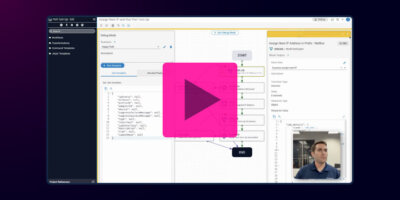
Itential’s Job Viewer application provides complete visibility into every workflow across every environment, giving Itential Cloud customers a single place to see exactly what workflows and jobs are running, how they are performing, and where attention is needed.

Built for teams managing multiple cloud platform instances across different environments, it removes the need to log into each one by consolidating job execution data from development, staging, and production into one view.

Whether you are an operator troubleshooting failures or a developer validating and optimizing workflow performance, Job Viewer delivers centralized insight that helps you resolve issues faster, validate changes with confidence, and keep workflows running efficiently at scale.

In this demo, you’ll see how to:

  • View and Correlate Logs Across Environments: Instantly switch between dev, staging, and production to see all job activity in one place.
  • Search and Filter with Precision: Identify manual tasks, error jobs, long-running executions, or specific job IDs with flexible filtering and customizable columns.
  • Drill into Job and Task Details: Inspect input/output variables, task types, timestamps, and results to accelerate debugging and validation.
  • Identify Performance Bottlenecks: Sort by elapsed time to quickly find slow or inefficient tasks.
  • Jump Directly to Associated Assets: Open workflows or view job details in Operations Manager with a single click.
  • Optimize Operations & Development Workflows: Give both operators and builders the visibility they need to improve reliability, speed, and efficiency across their entire infrastructure.

Read the docs to learn more.


Job Viewer is only available through Itential Cloud. It does not support on-premises deployments.

  • Demo Notes

    (So you can skip ahead, if you want.)

    00:00 Job Viewer Introduction & Hub Portal Access
    00:41 Environment & Multi-Platform Correlation
    01:47 Advanced Filtering & Column Customization
    02:14 Job Details & Task Analysis
    02:51 Performance Optimization & Elapsed Time Analysis
    03:22 Direct Navigation to Automation Studio & Operations Manager

  • View Transcript

    Rich Martin • 00:00

    Let’s take a look at JobViewer. As an Itential Cloud customer, if you log into the Hub Portal, you will be welcomed with this screen, which shows your different environments and the different itential platforms that are associated with those environments. In this case, I’m using our lab setup. So I have two itential platforms with a single environment called POC. Now to get to Job Viewer, all we need to do is navigate here under operations, click job and tasks, and we are welcomed with the job viewer dashboard. Now, at the very top you’ll notice under environment, I can select my different environments. In this case, I only have one POC, but typically our customers have a staging environment, a dev environment, and a production environment.

    Rich Martin • 00:41

    And so when you select one of those environments, all of the itential platforms that are associated with those environments, all of their job logs are now correlated together on a single dashboard. So this immediately gives us the opportunity to do some very interesting things like search by job ID, but maybe more likely you’re taking a look at things like what are some tasks that are now manually kind of running state but now sitting on a manual task? Or perhaps if I’m a developer and I’m building automation workflows, I can take a look at uh error jobs to find out you know where we’re having problems with certain workflows. And I can do that across all of my IAPs in a in a single search. Along with that, if I can clear out the filters here, I have the ability now to also add and delete some columns so that maybe I’m interested in some stuff and not so interested in some other stuff. So in this case, maybe I don’t need task descriptions, but I want to take a look at the project that a particular job is associated with. drag it to wherever I want to get the view I’m looking for.

    Rich Martin • 01:47

    And that’s super helpful. And then for every one of these columns that I have, I can filter based off of that. So in this case I have two different projects, workflow examples and template examples. Let’s take a look at what’s available just from the template examples projects that are in the logs. So I can take a quick look there and of course I can clear them out again. So this is looking at things from a job perspective. Obviously, a job is made up of multiple tasks in the workflow that get executed.

    Rich Martin • 02:14

    So if I click on a particular job, we’ll take a look at this one here. You’ll see all the different tasks that are associated with it. So here under variables, I can take a look at the input variables coming into that particular workflow, the output variables coming out of it. I’ll go back to jobs and tasks. I can take a look at start times and end times. And then for every task that gets run, I can tell if it’s an operations task, if it’s an automation task, again, workflow that was associated with. And if I’m trying to debug things or maybe I’m trying to optimize workflows that are being run, we’re trying to extract more efficiency out of our workflows.

    Rich Martin • 02:51

    It might be helpful if I do something like this. I click on the elapse time column and I can take a look at what’s taking the longest. In this case, we’ve got a 7 s task. It took 7 s to execute. And if I click on that, then I can get specific information about that task. So in this case, I can see the input, the output. Maybe parse some of that output with a with the results.

    Rich Martin • 03:22

    And so in that case, yeah, 7 s is probably correct what I and what I expect. But in cases where maybe I’m trying to troubleshoot things or maybe optimize things, from right here, I can also go to this link, which will take me to a workflow in automation studio to the particular IAP that this was run from. Or I can go directly into the operations manager for that particular IAP this job was running from and took a look at the job details from the job manager itself. And so with that. We hope that you can see by using JobViewer, you you’re going to get a much broader view of what’s going on across all of your different IAPs and your different environments. what your workflows are doing. So whether you’re an operator or a builder, this is a really helpful tool that we hope you can start to use and help to optimize and make those workflows run better, faster, and more efficient for you.