

Deliver Agentic Orchestration for Infrastructure Operations with FlowAI

In this hands-on demo, Principal Solutions Engineer Joksan Flores shows exactly how Itential FlowAI automates real cloud networking operations using enterprise-grade agent orchestration. By combining AI reasoning with deterministic workflow execution, FlowAI allows agents to securely run business logic, integrate with existing tools, and automate multi-step provisioning tasks end-to-end.
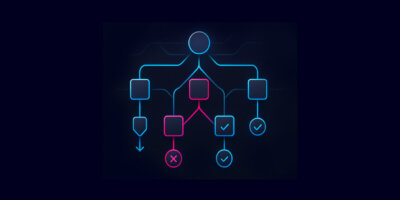
What This Demo Covers :

  • Building an AI Agent in FlowAI with controlled access to workflows, scripts, and integrations
  • Exposing tools to the agent including Python scripts, API tasks, and workflow assets
  • Provisioning an AWS VPC end-to-end, driven entirely by agent reasoning
  • Allocating subnets from Infoblox IPAM using a workflow-based deterministic process
  • Sending automated Slack notifications with formatted provisioning results
  • Viewing mission logs and tool calls to understand the agent’s reasoning and actions
  • Updating the agent with new tools to expand and orchestrate more complex operations

This demo highlights how FlowAI enables secure, governed, and intelligent automation across cloud and network environments – showing the practical path to adopting Infrastructure AI in real operations.

  • Demo Notes

    (So you can skip ahead, if you want.)

    00:00 Itential FlowAI Introduction
    01:05 Agent Framework Architecture
    02:24 AWS VPC Workflow Creation
    03:44 Input Schema Configuration
    05:09 Flow AI Agent Builder
    08:54 Agent Execution Testing
    10:52 IPAM & Slack Integration
    15:23 Multi-Step Orchestration Demo
    19:54 Wrap Up & Platform Capabilities

  • View Transcript

    Joksan Flores • 00:00

    Hi everybody, my name is Joksan Flores. I am a principal solutions engineer at Itential, and today I’m extremely excited to be able to demonstrate the Itential FlowAI application. The FlowAI application built up on all the capability that the Attential platform already provides from its instrumentation layer, where you can connect virtually any API. Also devices via CLI using SSH via multiple mechanisms like NetMico, Ansible, et cetera. And also its capability to execute things like Ansible Playbook and so forth at the instrumentation layer. On top of that, the Tensor Platform offers extremely capability with its workflow engine to provide deterministic capabilities to the agents. So it’s using the Attentional FlowAI application, we are able to expose workflows that are deterministic that follow our customers’ business logic into an agent as tools.

    Joksan Flores • 01:05

    That way we can actually leverage all the capabilities of the agents for reasoning, but at the same time use the determinism of workflows as well as the platform security, auditability, and so forth to build a secure enterprise grade AI agent framework. So let’s go ahead and demonstrate that. So we’re actually in the AI, FlowAI dashboard right now, but we’re going to go ahead and create a simple agent. First, what we’re going to do is we’re actually going to create some tools for that agent, and then we’ll go ahead and have provide that agent definition. So let’s go ahead and do that. What I have done is I have created a simple project in here that is empty at the moment. A project in intensal is a container of assets.

    Joksan Flores • 01:51

    And this allows us to expose assets securely to the agents that only that we will be able to restrict what things the agent can see. So I have to allow what projects the agent can execute workflows from and also what additional tools. So we’ll actually be looking at that a little bit later as well. So let’s go ahead and add our 1st workflow. And I’m going to call it create AWS VPC. Um, that gives you a clue of what we’re going to be doing today. So we got a project called Virtual Network Provisioning, and we’re going to be using a script that creates a VPC.

    Joksan Flores • 02:24

    So let’s go ahead and do that. And I’m going to go ahead and connect my Task in here. This is a gateway manager task. So this actually exposes workflows or scripts into the platform as workflow tasks. So I will go ahead and pick my gateway cluster here and then uh VPC add. Here we go.

    Joksan Flores • 02:48

    So we want a Python script. So I actually have a Python script that already does this. So we’ll go ahead and do that. I will go and set most of these variables to job. And what that is going to do is that’s actually gonna expose them as runtime variables that have to be passed into the workflow. Or in this case, we’re actually designing the workflow as a tool. So these are variables that the agent will have to pass in when executing and calling the workflow.

    Joksan Flores • 03:11

    So let’s go ahead and expose that CIDR there, the VPC name. We want it to be a variable. Um the prefix, I’m gonna go ahead and say um we’re gonna call it demo. Um, and then the region we’re gonna be passing it in as um input and the subnet as well. So go ahead and save that, and I do want to validate my input. So this is the input schema or the input set of variables that need to be passed into that workflow. So this is actually used as part of the context that gets given or provided to the agent upon definition.

    Joksan Flores • 03:44

    So when I create an agent and I give it access to this workflow, the agent will be able to look through the project and see okay, what workflows are available and what do they require to be executed, as well as what capability that they provide. So this is actually how we define what things the agent has to pass in as values, and we’ll leverage the agent reasoning capability for that. So go ahead and open my run task again. I do want to have my result on my error as outputs, that way the agent can see what’s going on with that task execution. And then the other thing that I want to do is I always like to do this at the very least for my simple stuff. I’m gonna create a job status variable, and this is gonna be a success. If something if everything goes well, and if it if something fails, then let’s go ahead and let’s do an error.

    Joksan Flores • 04:38

    Okay. Notice how quickly I’m creating a workflow here by just clicking, dragging, and dropping things. And like I said before, we’re actually designing an agent tool that we’re going to expose to that agent that we’re going to create creating later. So very quickly here. I could also go and build on and add evaluations and logic and other API calls and so forth. I could also not use my script and create a workflow that launches a VPC creation via API. So I can do a lot of different things in here, but in this case I want to keep it simple.

    Joksan Flores • 05:09

    I already have a script that does it. So let’s go ahead and do that. But I’m using the power of it’s platform in order to expose those to those workflows and these scripts as tools to the agent. So our schema looks good, cider name, region subnet. Let’s go ahead and do flow AI and let’s go ahead and actually show the magic. Let’s go ahead and do the build agent. I will provide it a system prompt.

    Joksan Flores • 05:36

    URK cloud network operations agent. Complete the following or yeah, the following steps upon provisioning. Provisioning request. Perfect. Step one will be create a AWS VPC using the provided parameters. Okay. So one of the things that I’m doing here is I’m actually providing the agent a personality and some context, saying your cloud network operations agent, and complete the following steps.

    Joksan Flores • 06:18

    Notice that I actually called out step one. For now, we don’t have any other steps, but the reason why I did that is because we will actually come back later and modify that. And we’ll inject tools in a couple in a couple of ways just so that we can demonstrate the capability that’s been offered here. Of name let’s see, let’s call it flow AI BPC uh in in region US. West one cider block. We have to pass the cider block. Cider block.

    Joksan Flores • 07:09

    We’re going to use 10.14.0.0 slash 16. This is outside of my iPad block. And subnet 10.14.1.0 slash 24. All right. 10 14.00 slash 16. These are we have to make sure they don’t clash. And then uh we got the name of the VPC, we got the region.

    Joksan Flores • 07:30

    I always like to split this to split these up into separate, but we’re gonna do one sentence just to make sure that we can show we can do this in natural language. And this is how we’re gonna be leveraging uh the power of the LLM to reason, but then it’s all takes care of the deterministic portion that we want, which is the actual uh execution of the business process itself. So the 2nd piece here is assigning tools. So we’re gonna go ahead and go to projects. And since I already created that project, virtual network provisioning it has one workflow. So what that does is that tells me, hey, there’s a workflow here that I can use as a tool for my agent. And later we’re gonna come back in and actually modify that to add more tools to this agent.

    Joksan Flores • 08:11

    But let’s go ahead for now. Let’s do this. So let’s go ahead and click next. We’re gonna leave everything else as default. I can do some tweaking, I can change language, um, large language models, providers, etc. temperatures. I’m gonna leave everything as default, it’s completely adequate for what I want.

    Joksan Flores • 08:27

    And I’m gonna go ahead and create my agent and let’s go ahead and look at it, make sure that it all looks good. We got a prompt, we got prompts. We don’t have any tools that are um discrete tools. We only have a project, and the project will load whatever tools that are available inside of it. So any workflows that were there are available in my project will be available as tools. But for now, let’s go ahead and launch this. Let’s go ahead and make sure that my VPCs I don’t have anything that’s clashing because I have tested things before.

    Joksan Flores • 08:54

    I do have a no, nothing is clashing with mine. I got a demo flow AI VPC with IPM. Let’s go ahead and delete that guy. Just because I don’t want it. It does not shouldn’t be the name that I’m using, but I’m gonna go and delete that one. So I don’t need it. Okay, so that’s deleted.

    Joksan Flores • 09:11

    And our VPC should be called FlowAI VPC. Perfect. Let’s go ahead and run my agent. When the agent is starting, we’re gonna get a pop-up here. And we should see a message once the agent is done. Okay, so our agent finished and we get redirected into our missions page. So let’s go ahead and open that agent.

    Joksan Flores • 09:38

    We have some pass runs because I tested this. So we can go here and see. Okay, the agent took 15 seconds. We had one tool call and five messages. Tool calls really good sign. So we got a prompt. We got another prompt, which is what we passed in.

    Joksan Flores • 09:51

    And now we got some reasoning. So I’ll create an AWS VPC with the specifications provided. And uh this looks very good. We got some output in JSON from that script, but it’s got a bunch of others from the task here, and we got the standard out. So we got some RSAs and things like that. So I think our VPC worked. And yeah, effectively it did.

    Joksan Flores • 10:11

    So we got a summary from the agent. That’s perfect. But this is a new this is an UI for the builder, right? It works for that builder. We’re gonna have to do some modifications, but 1st let’s go ahead and check that everything looks good from the AWS perspective. Yep, we have FlowAI VPC. Our VPC has been created.

    Joksan Flores • 10:28

    Perfect. Okay, so let’s go ahead and modify our agent. So now our agent is is good. It works for provisioning VPC, but I actually want to do a couple things that I want to add. There it’s a couple things that I want to add to it. One thing that I want to do is I want to add IPAM to it because I don’t want to keep having to type in this the network, and this is actually out of sync. This is a block that’s not in my IPAM system.

    Joksan Flores • 10:52

    But I already have info blocks on boarded in the attention platform. So I want to go ahead and leverage that. The other thing that I want to do is if you notice on the missions, we actually have to go to the agent and scroll through all the messages that the agent produced in order to see the result. I want to add Slack notifications to that. So let’s go ahead and go back to my project. And what I’m gonna do is I’m gonna add an existing workflow because I have a workflow that does this already. So we’re gonna do Slack.

    Joksan Flores • 11:21

    I got a Slack demo here. This works already. I know it’s been tested. So I have a Slack notification workflow that has a couple tasks, title and text. And this will already define a well-crafted notification for me, right? It has a title that has a heading and so forth, and it’ll actually produce the body that I need for my Slack for my Slack notification to be sent. Okay, so now that we have added this lack notification workflow, what I’m gonna do is I’m gonna create another one for the IPAM request.

    Joksan Flores • 11:55

    So I want to do IPAM because I don’t want to be passing in subnet. Um we’re gonna call it allocate um vpc subnet. Let’s go ahead and do that, and we’re gonna continue. So let’s go ahead and modify our workflow and make it horizontal here. And I want to use the assign next network task from info blocks. And let’s go ahead and see what it requires. I do want to have variables again.

    Joksan Flores • 12:28

    And yeah, let’s go ahead and do that. I like to have this created here, so let’s go ahead and do success. And error. Let’s go and connect those in. We can close this for now. Connect that. We’re gonna connect that one to the end.

    Joksan Flores • 12:56

    And error here. Perfect. Simple enough. And let’s go ahead and configure our assigned next network task on InfoBlocks. So the network block we’re gonna also pass in as an input variable, just like we did on the Slack notification. The next network subnet mask, we’re also going to do that, be passed in as a variable as well. We will pass in as a prompt, pass that in as a prompt for now.

    Joksan Flores • 13:18

    And then the comment. So pretty simple stuff. We’re going to pass everything inbound. So let’s go ahead and check that, make sure that uh that everything looks good. So our block, mask, and comment. Okay, pretty good. Perfect.

    Joksan Flores • 13:32

    Let’s go ahead and modify our agent because now we got two more tools and we want to make sure that we leverage those. So we’re gonna add a bit of orchestration into this whole thing. Now, granted, also mentioning again, just like the Slack workflow, I could ask, I could do a lot of error handling and additional things in here. If I needed to do approval processes for things like allocating blocks that are grading that greater or larger than a slash 28, rather, in this case, we’re gonna be allocating a 24. If I wanted an approval there, I could go ahead and do that as well. I could add a lot of the logic here in order to leverage again the deterministic deterministic portion or the deterministic um value that the attention platform provides. So the coolest thing here is also that I can restrict.

    Joksan Flores • 14:20

    So these are the only things that the agent will be have access will have access to, which are inside the project. So let’s go ahead and go back to my agent. And we had our run from earlier, so let’s go ahead and change our agent really quickly. So let’s go ahead and the 1st thing we got to do is edit our agent. Our project looks good. So our agent still has access to those things inside the project. So anything I added there, it’s available.

    Joksan Flores • 14:44

    So then the 1st thing that we want to do now is we’re going to modify our prompt. So this is going to be our step two. And then our step one, uh, it’s going to be allocate a subnet using the provider parameters. And then we’re going to be adding a step three, uh, which is going to be send a fancy Slack notification with the provisioning results. Okay, crawl. So now that we did that, let’s verify our order, everything is good. Allocate a subnet, create a VPC, send a Slack notification.

    Joksan Flores • 15:23

    Okay, so now that the user prompt, it’s going to be configure the VPC with the following values. Now we want to use an IPIM block. One of the things, let me go ahead and back. I do want to test this workflow to make sure that I have the blocks and the values. That’s it. I got my IMPAM pulled up to the side in here. We’re going to pass it in as a number and then come is going to be test.

    Joksan Flores • 15:47

    So I’m going to go ahead and run that. Um okay, so this must be a string, good to know. Perfect. I mean the agent will know this. I wouldn’t, I didn’t check it. Okay, did that work? Perfect.

    Joksan Flores • 16:02

    Okay, awesome. That worked. One thing that I did forget to do, which I’m gonna go ahead and do here, is actually I want to store the result as a job variable. Just for context for the agent. Well, we tested that. So I’m gonna go ahead and save this to the side here on my handy dandy notepad. Let’s go ahead to our agent definition and we’ll want to modify this to say network block.

    Joksan Flores • 16:23

    It’s gonna be 10.11.2.16. That block has to be an IPAM. Um we’re gonna go ahead and rename this guy to FlowAI demo um slack ipam. Uh orchestration. It’s a very long name. Hopefully, the AWS doesn’t give me grief for that. And then we’re gonna go ahead and delete that.

    Joksan Flores • 16:47

    We don’t need it. The one thing that we do need, if we looked at that, um, we can actually let’s flip this. I want to region AWS East AWS US West 2, US West one, and then subnet mask. Uh we want to have that as a 24. We had set. So let’s verify this. Everything looks good here.

    Joksan Flores • 17:05

    Uh we got a long name here. Full AI. Let’s just go ahead. We already have demo in the prefix. Let’s go ahead and do and undo that. Let’s lock iPam orchestration, US West 1, network block 1011 0016, and subnet mask of 24. Double check here.

    Joksan Flores • 17:23

    Everything looks good. Let’s go ahead and save that. And we got our project, we got our prompt. So let’s go ahead and run our agent, see what happens. Okay. Let’s wait a minute. Now we’re telling the agent there’s a lot more stuff to do, or a couple more things to do, so it might take a little longer.

    Joksan Flores • 17:55

    Okay. Okay, our agent finished less than a minute ago. It took 26 seconds, nine messages, and three tool calls. Okay, good. So let’s see, we got the 1st ones, the 1st two are prompts. This is good. Now we got here we go.

    Joksan Flores • 18:11

    Okay, awesome. So I’ll help you provision the network with the specified parameters. First, I’ll allocate the subnet, then I’ll create the VPC, then I’ll send a slack. So let me start by doing a tool call. So this is perfect. So we got three tool calls. Let’s go ahead and keep exploring here.

    Joksan Flores • 18:26

    Um, this is good. Okay, so tool call allocate VPC subnet. Uh, it did that. Okay, so we got an allocation there, I think. Awesome. We’re gonna create the subnet was allocated, so it did some reasoning. 101153 was allocated.

    Joksan Flores • 18:43

    Now let me create the VPC. So it called that and then it got some results. It got a bunch of stuff again. Awesome. And then it did the Slack notification. Awesome. Look at that.

    Joksan Flores • 18:54

    So it’s a notification, it looks pretty fancy with some logos and stuff. Let’s go ahead and verify that our VPC was created. And I have been signed up. Lock back in. Come on, AWS. Okay, here we go. I think this is it.

    Joksan Flores • 19:21

    Is this it? Nope. This one. That was a testing one that I did before. So this is the one 1011530, last 24 VPC, route tables, everything was created. This is fantastic. We got some tags in here with the name and stuff like that.

    Joksan Flores • 19:38

    And also the other thing that I do want to check is we got our run here. And our notifications right here. Look at that. So we actually have our provisioning has been complete. It’s got all the data. It’s a fancy notification. It looks real, really, really good.

    Joksan Flores • 19:54

    All resources have been created. So this is one of the just a very basic example to kind of introduce the power of this FlowAI application. There’s definitely a lot of possibilities, especially considering that now we not only get the capability of executing. Discrete assets from the platform like scripts and API tasks and so forth, but we can also have business entire business processes that follow the orchestration of a workflow, right? It follows the state-of-the-art workflow capability that Itential provides, all exposed as tools. Um, very exciting, um, very fun to be able to demonstrate this today. And uh, and I’m very excited to to showcase a lot more use cases in the future.

    Joksan Flores • 20:40

    Thanks for tuning in.

Watch More Itential Demos