Investigate the Failure Before Choosing the Next Action
A failed job doesn’t always need a new run from the beginning.
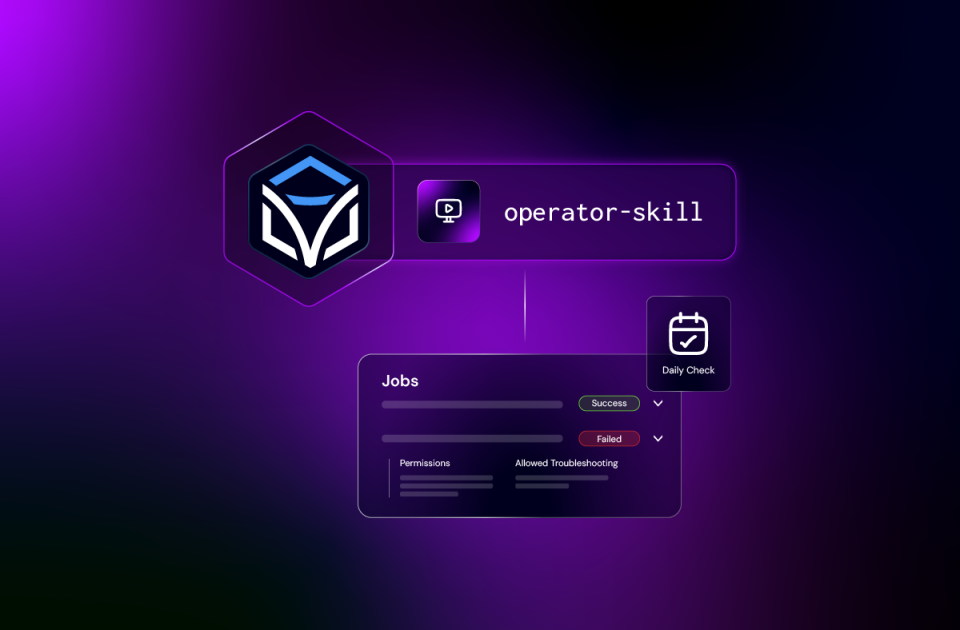
The skill reads the job’s error information to identify the failed task, then inspects the relevant results and variables. From there, you can decide whether to correct an input, investigate an external dependency, retry the task, or escalate with the evidence.
When a retry is appropriate, the skill can retry the failed task within the existing job. The job keeps its variables and completed work.
That preserves execution state. It doesn’t undo anything the failed task may already have done in an external system. Review the operation before requesting a retry, particularly when a task could have completed part of its work before reporting an error.
The useful result is the task and error information you need to choose the next action, rather than another attempt made without understanding the failure.
Prepare the Next Run With the Right Inputs
Now take an operation that needs to run.
Ask: “Find the interface compliance automation and show me the inputs it needs.”
The skill finds the automation and looks up its workflow inputs. Automations don’t store those inputs themselves; the workflow does.
Once you have reviewed the required values, supply them and request the run. The skill starts the job with the variables in the expected request structure. You can then inspect progress, task results, and outputs.
This is one of the details that task-specific guidance handles. Inputs belong in options.variables. Put them at the top level of the request and the intended values can be ignored.
The request to find an automation prepares the operation. The request to run it is the next step.
Handle the Work Waiting on People or Schedules
Some jobs are waiting for a decision rather than recovering from an error.
Ask: “What’s waiting for my approval?”
A waiting manual task can appear as running, with type manual. Looking only for paused work can miss it. The skill documents how to find, claim, inspect, and complete the task.
Review the task data and specify the outcome. Completing it requires the appropriate finish_state and variables, which determine how the workflow continues.
Scheduling has its own details. Ask: “Schedule this compliance automation to run every 12 hours.”
The skill uses scheduled triggers with a first run and repeat interval. The documented model uses firstRunAt and repeatInterval, expressed in milliseconds, rather than cron syntax.
Resolve the first run and repeat settings, then inspect the resulting trigger configuration. The same skill also covers manual and endpoint triggers, including enabling or disabling triggers.
The Platform Knowledge Behind These Requests
The original implementation was checked against a live Itential Platform 6.5.2 environment, including endpoints, request bodies, and query filters. Several findings explain why the skill contains more than a list of API calls:
- Filters differ by resource.
Jobs and tasks use patterns such as equals[status]=error. Automations and triggers use patterns such as equals=schedule&equalsField=type. An incorrect filter can return more data than intended. - Job inputs come from the workflow.
The skill looks them up before execution and places supplied values in options.variables. - Manual tasks have specific states and completion requirements.
Finding a waiting task, claiming it, and submitting an outcome are separate parts of the operation. - Visibility depends on access.
If an expected workflow isn’t visible, check the connected account’s permissions and project access before concluding that the workflow is absent.
These are implementation details, but they affect the result an operator sees. Check the repository for current requirements and behavior on your platform version.
Install It Where You Already Work
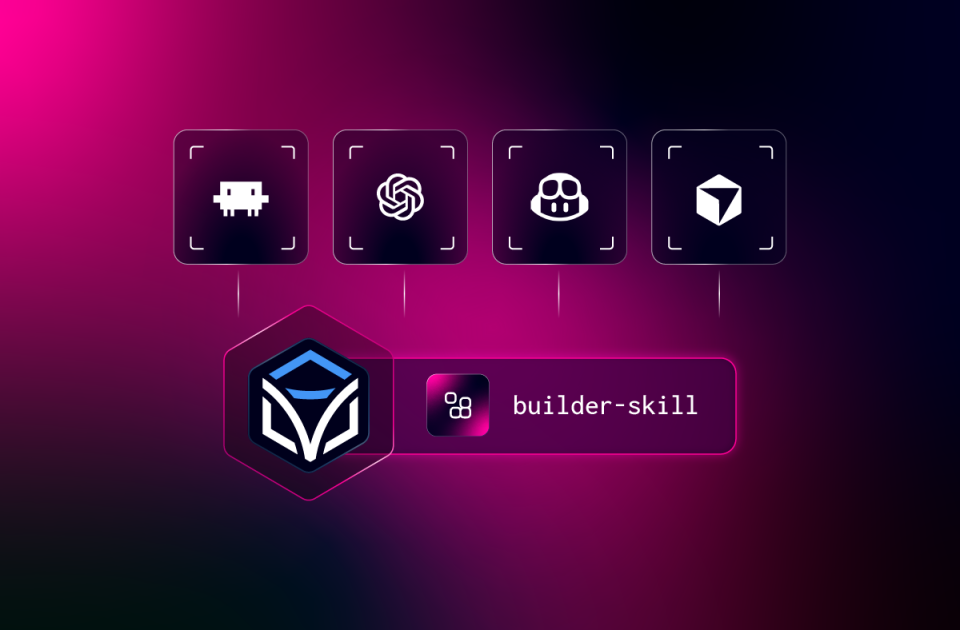
Operator Skills is an open-source pack containing the operator skill. It supports five coding experiences:
| Coding Experience | Installation Path |
| Claude Code | Plugin marketplace |
| Codex CLI | Plugin marketplace |
| GitHub Copilot CLI | Plugin marketplace |
| GitHub Copilot in VS Code | Install Plugin From Source |
| Cursor | GitHub CLI skill installation |
The installation guide contains commands, invocation syntax, and update instructions for each tool.
After installation, create a working folder with your platform URL and credentials configured according to the setup instructions. Open the harness there and start with an inspection request.
You can invoke the skill directly or describe the operational task in plain language. The connected account needs access to the resources and actions involved. Keep credential and token files out of source control.
Add the Procedures Your Team Actually Follows
Operations teams have rules a general skill can’t know. Production retries may need a change ticket. Trigger names may follow a convention. Some jobs must never be cancelled mid-run.
The skill includes three customization folders:
- custom/org for shared organization guidance.
- custom/team for team procedures and conventions.
- custom/dev for personal environment settings.
For example, document when a production retry requires a change ticket, what evidence should be attached, and when an issue needs escalation.
Keep shared guidance in an organization copy of the repository and have the team install from that copy. Keeping customization separate from the foundational skill makes upstream updates easier to review and merge.
Custom instructions guide how the agent approaches the work. Platform permissions determine what the connected account can access and change.
Know When to Switch Packs
Operator Skills focuses on existing automation: execution, job investigation, manual tasks, and triggers.
If the underlying workflow needs a design or implementation change, use Builder Skills. If the issue involves platform services, access, or integration configuration, use Admin Skills. The packs install alongside one another, and each can be used independently.
Testing a new delivery stays with Builder’s delivery process. Operator handles running and investigating existing automation.
Put It to Work
Start with a job or task that needs attention. Inspect a failure, check the inputs for an operation, review a waiting manual task, or adjust a schedule.
Explore the examples and setup guidance on the Itential Operator Skills page. The open-source repository includes the skill, documentation, and contribution instructions.
If something behaves differently in your environment, or there’s an operational task you want covered, open an issue.
Keep your automations running from the tool you already use.
Get Started on GitHub →


 Build Build agents & workflows visually, with AI, or bring your own.
 Integrate Connect every system, tool, agent, & AI in your stack.
 Execute Execution for agentic & deterministic operations.
 Secure & Govern Govern every action with built-in RBAC, audit & approval gates.
 Operate Self-service operations & real-time visibility.









 Agentic Operations Connect AI to infrastructure for trusted, automated actions.
 Infrastructure Modernization Transform legacy networks into modern, AI-ready infrastructure.
 Infrastructure as a Product Deliver network and infrastructure services on demand - self service, governed, & consumed like cloud.
 Hybrid & Multi-Cloud Orchestration Unify hybrid & multi-cloud infrastructure through agentic orchestration.
 Unified Change Management Unify network & infrastructure changes across every team, tool, & domain.