Overview
[The Model Context Protocol (MCP) is rapidly becoming the universal standard for connecting AI assistants to real-world tools, APIs, and infrastructure. Thanks to its standardized JSON-RPC interface, MCP enables any AI agent to securely discover and use external capabilities without specialized integration logic. Itential’s MCP Server brings enterprise-grade network and infrastructure automation to MCP-aware AIs including Microsoft Copilot, Microsoft Copilot Studio/AI Studio, OpenAI, Anthropic, Google Gemini, and more. This guide walks you through end-to-end setup, including:
- Installing and running the Itential MCP Server
- Configuring authentication (OAuth, Basic Auth)
- Integrating MCP inside Microsoft Copilot AI Studio
- Creating a Copilot Agent with MCP
- Auto-discovering Itential tools and resources
- Testing your agent with real Itential platform interactions
By the end, you’ll have a functioning Copilot agent that can manage infrastructure with natural language – safely and with full visibility.
What is MCP?
MCP (Model Context Protocol) is an open standard introduced to standardize how AI assistants interact with external systems. It provides three foundational capabilities:
1. Tools
Executable functions exposed by an MCP server. Examples from Itential MCP:
- get_devices
- get_health
- launch_workflow
- query_inventory
2. Resources
Structured data access such as files, logs, or inventory payloads.
3. Prompts
Reusable workflow templates an AI can use as tasks.
Why MCP Matters
- Universal connectivity across AI ecosystems.
- Zero bespoke integrations required.
- Instant tool discovery.
- Enterprise-grade security through standardized auth and isolation.
How Itential Safely Brings AI to Enterprise Infrastructure
The Itential MCP Server provides the safe execution layer bridging AI and enterprise infrastructure. Itential handles execution, authentication, RBAC, and audit logging – while the AI provides reasoning and intent interpretation.
When a Copilot agent says: “Show me the devices in the Texas data center.”
Copilot → MCP → Itential Platform → Inventory results → Copilot formats for the user.
This separation of responsibilities keeps automation safe, repeatable, and governed.
Installation Options & Authentication Setup for Itential MCP
Full installation steps are available here →
This guide keeps installation high-level to focus on Copilot integration. Authentication options supported:
(See the repository for complete configuration details.)
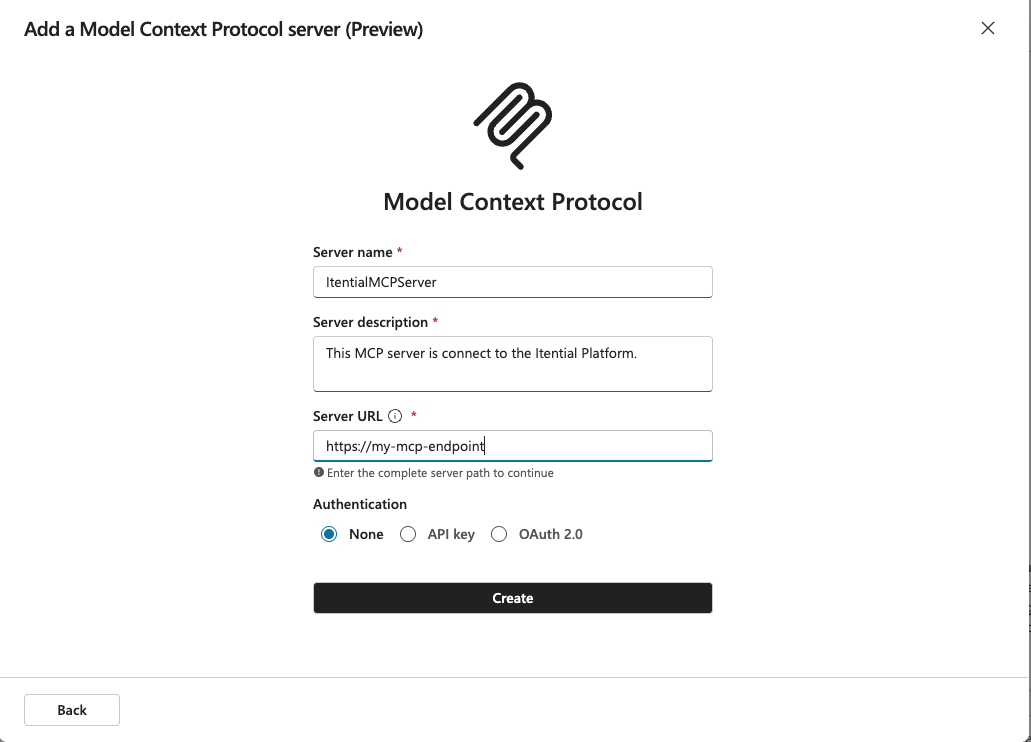
Configuring MCP in Microsoft Copilot AI Studio
Microsoft added MCP support to Copilot AI Studio and Custom Copilot Agents starting in 2025. MCP servers can be added as external tool providers
Step 1: Open Copilot AI Studio
Navigate to: https://copilotstudio.microsoft.com/
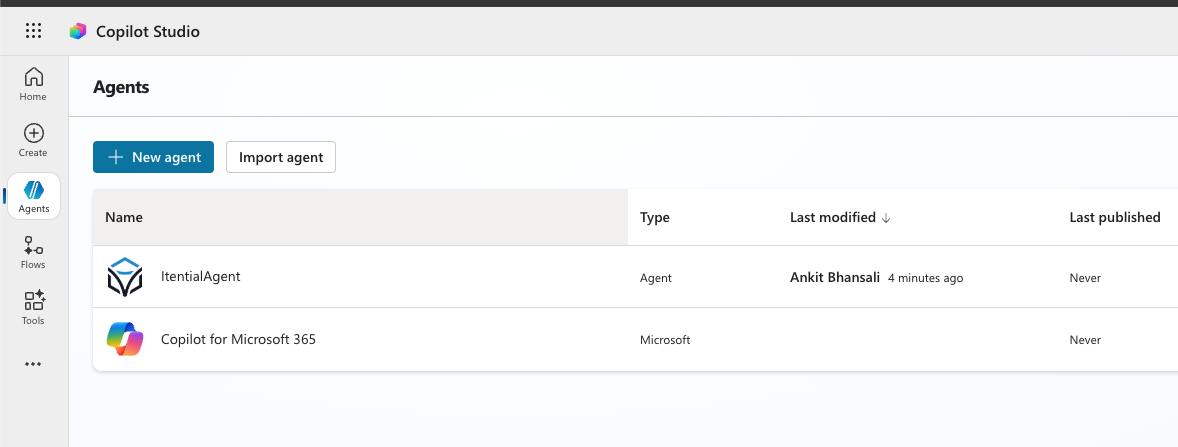
Create your agent
1. Go to Build → Copilot Agents → New Agent
2. Give your agent a name (e.g., Infrastructure Assistant)


 Build Build agents & workflows visually, with AI, or bring your own.
 Integrate Connect every system, tool, agent, & AI in your stack.
 Execute Execution for agentic & deterministic operations.
 Secure & Govern Govern every action with built-in RBAC, audit & approval gates.
 Operate Self-service operations & real-time visibility.









 Agentic Operations Connect AI to infrastructure for trusted, automated actions.
 Infrastructure Modernization Transform legacy networks into modern, AI-ready infrastructure.
 Infrastructure as a Product Deliver network and infrastructure services on demand - self service, governed, & consumed like cloud.
 Hybrid & Multi-Cloud Orchestration Unify hybrid & multi-cloud infrastructure through agentic orchestration.
 Unified Change Management Unify network & infrastructure changes across every team, tool, & domain.