...
Itential Platform Pricing Explore flexible plans and options for your team

Itential logo
Human-in-the-Loop Workspace

Itential Work Center

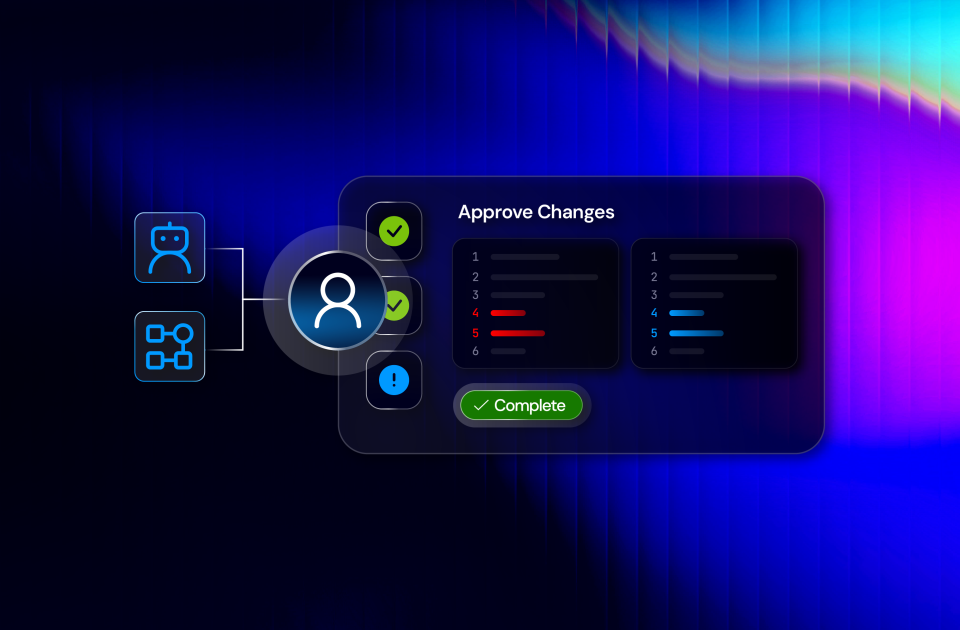
As agents start to reason and act on infrastructure, the question every operator has is simple: where do I still have the final say? Work Center is the answer. Every decision that needs a human, whether a workflow paused for it or a FlowAgent surfaced it, lands in one queue, with the reasoning behind it, so you approve with context instead of trusting blind.

One Workspace for Every Human Decision

Give Operators One Workspace for Every Task a Workflow or Agent Hands Off


Work Center gives operators one queue for every task that needs a human decision, whether a workflow paused for it or a FlowAgent flagged it for review. Each task comes with full context on what triggered it and what happened before, a purpose-built interface instead of a blank form, and a complete audit trail of who acted and when.

icon showing multiple silhouettes, symbolizing a team
Never Miss a Decision That Needs You

Every human checkpoint, from a workflow or a FlowAgent, funnels into one queue you actually watch, instead of scattered across job graphs and agent sessions nobody’s monitoring consistently.

Icon symbolizing flow agents
Stay in Control as Agents Take On More Work

As FlowAgents handle more of the routine work, you keep the final say on what matters, without becoming the bottleneck that has to babysit every step.

Icon symbolizing a tool
Skip Building Your Own Approval Tool

Teams that used to hand-roll a custom form or portal for structured approvals get a purpose-built one instead, with no engineering lift required.

Icon symbolizing governance
Nothing Gets Approved Off the Books

Every action is logged automatically, so audits and incident postmortems don’t start with someone reconstructing who did what from memory.

Full Context, Including the Agent’s Reasoning

See What Triggered the Task and Everything That Led to It

Every task in Work Center comes with the full story: what triggered the job, how long it’s been running, and every task that came before this one, including the reasoning a FlowAgent used to get here. A visual timeline lays out the sequence so operators can see how a decision got to them before acting on it.

Icon symbolizing an AI brain
The Full Trigger Story

Source, runtime, and start time, with a direct line back to the agent session behind it.

Icon symbolizing secrets
A Timeline, Not a Transcript

Completed tasks, the active one, and what’s still to come, all visualized in sequence.

Icon symbolizing human in the loop
Audit Without Re-Opening the Case

Any completed task an operator has permission to see opens in read-only mode.

The Work Queue

Prioritize by What’s Actually Waiting

Filter the queue by All, Assigned to Me, or Unassigned, each showing a live count. The In Queue column shows how long the current task has been waiting, so operators know what to prioritize without guessing.

Icon symbolizing closing the loop
Built-In Prioritization

The queue surfaces what’s aged longest, not just what arrived first.

Icon symbolizing a tool
One Queue, Every Trigger

Manual, API, event, schedule, agent, and job-triggered work all land in the same view.

Icon symbolizing a lack of governance
Sort and Filter on Everything

Source, origin, elapsed time, wait time, and status are all searchable and sortable.

I used to worry that agents meant I’d be out of the loop on changes to my own network. Work Center flipped that. I see exactly what the agent found and why before I ever click approve. It’s not less control, it’s better control, with less digging around to get it.
Network Operations Lead, Large Financial Institution
Quick Form Task Interfaces

See a Real Interface, Not a Blank Form

Work Center renders every task and form type Platform supports, including JSON forms and Quick Forms. Quick Form presents any data as a table with actions on each row: approve, reject, select, or input. If a task’s data is too large to load safely, operators get the choice to view it in-browser or download it.

the logo for Model Context Protocol (MCP)
Rendered as Designed

JSON forms and Quick Forms display natively. No blank tasks, no workarounds.

Icon symbolizing a silo
Action on Every Row

Approve, reject, select, or input, applied directly to structured data.

the logo for Model Context Protocol (MCP)
Built for Scale

Oversized task data never breaks the session. View it in-browser or download it instead.

Assignment & Audit

Claim a Task Without Locking Out Your Team

Claim a task to show your team it’s being handled, hand it to someone else, or release it back to the queue, none of it locks the task down for other users with permission. Every action, claimed, completed, or reassigned, is logged automatically with who did it and when.

icon showing a checkmark on lines of text or code
Claim, Reassign, or Release

One click updates ownership, visible to the whole team instantly.

Icon symbolizing operations teams
Permission Sets the Pool

Only users with access to a task ever appear as assignment options.

Icon symbolizing PSE
Every Action Attributed

Who acted and when is captured automatically, visible in the audit trail.

Use Cases

Human Decisions, Wherever They Come From

Every example below runs through the same work queue: full context, purpose-built task rendering, and a complete audit trail on every decision.

Icon symbolizing finding
Approvals Without the Hunt

A workflow reaches a decision point mid-provisioning. Instead of opening the job graph to locate it, the operator finds the task waiting in Work Center with full context already assembled.

Icon symbolizing an ordered list
Agent Recommendations, Reviewed Before They Run

A FlowAgent proposes a remediation action. The operator reviews the agent’s reasoning trail directly where the approval appears, then approves or rejects with full context in view.

Icon symbolizing PSE
Quick Form Instead of a Custom Portal

A team that used to build a custom internal form for structured approvals, say, a batch of firewall rule change requests, now uses Quick Form’s per-row approve/reject inside Work Center instead.

icon showing multiple silhouettes, symbolizing a team
One Queue Across Teams

NOC, security, and platform teams each see only the tasks scoped to their permissions, in one shared workspace, instead of three separate tools with three separate models.

Itential for Operations Teams

See how NOC and infrastructure operations teams use Itential to run approved automation without a ticket, cut incident triage from hours to minutes, and stay in control as more of the routine work gets automated.

Keep Learning

Dive Deeper into Itential for Operations Teams

Get Started

Give Operators One Place to Act

See how Work Center gives every operator a focused queue for human-in-the-loop decisions, whether a workflow or a FlowAgent raised them.

Frequently Asked Questions

+

Actionable Tasks is the legacy path – manual tasks created before Platform 6.5 remain there. Work Center is the purpose-built path going forward: agent-invoked tasks appear only in Work Center, and Quick Form tasks show as a blank placeholder in Operations Manager but should be completed in Work Center.

+

No. Assignment is advisory – claiming signals your team you’re handling it, but any user with permission can still act on the task.

+

Manual tasks from deterministic workflows and human-review checkpoints from FlowAgent sessions, rendered as JSON forms, Quick Forms, or other supported task types.

+

Yes. Manual, API, Event, Schedule, Agent, and Job-triggered work all surface in the same queue with the same columns and prioritization signals.

+

A warning appears with two options: View Data, which loads it in the browser, or Download Data, which saves it as a local file, so large payloads don’t break the session.

+

Work Center ships with Platform 6.5 and is available in both cloud and on-prem deployments.

+

Work Center is where operators act on a decision in the moment. Job Viewer and Insights (inside Cloud Hub) are where teams search execution history and measure aggregate performance and ROI after the fact – acting and measuring are two different jobs.

+

No, not for anything configured as a human-in-the-loop checkpoint. A FlowAgent can reason, propose, and even queue up an action, but wherever a checkpoint is defined, the workflow or agent session pauses and the task lands in Work Center until a person approves it. Autonomy thresholds are set when the agent is built, not decided in the moment, so the boundary isn’t something an agent can talk its way around.