The first entry in an ongoing series about the home lab I use to actually learn Itential Platform: five Docker containers, one real network backup, and the automation pipeline that connects them.
I joined Itential as a Solutions Engineer recently, after a decade in network engineering and automation. I’m not new to automating networks. I am new to automating them with Itential Platform.
So, I’ve been learning Itential Platform the way I actually retain anything: by breaking it, fixing it, and writing down what happened. So a few weekends ago I built a small home lab with one goal that sounded simple on paper. Trigger a single workflow, and have it reach all the way out to a real network device, pull its live configuration, and land that configuration back inside the platform as a genuine, timestamped backup. No mocked data, no hardcoded output. A real closed loop.
This post is the first in a series documenting that lab as it grows. If you’re new to Itential Platform, this one’s for you as much as it’s for me, I’ll explain the pieces as I go. If you already live in this stuff every day, you’ll recognize the shape of the pipeline immediately, and hopefully still get something out of watching it get built from scratch, mistakes included.
If I had to compress the whole project into one line, it’s this: a local practice environment pairing Containerlab-hosted Arista cEOS switches with Itential Platform, proving a full pipeline end-to-end. A Platform workflow reaches through Gateway Manager and Gateway, runs Ansible over SSH against a real network OS, and lands a genuine backup document back inside Configuration Manager.
The lab attaches to the dev stack’s existing bridge network instead of creating its own, so Platform and Gateway can reach the lab switches with zero extra routing or wiring. Five containers, one shared network: Platform itself, two gateways for comparison (gateway4 running Gateway 4, gateway5 running Gateway5), and two Arista cEOS switches, ceos1 and ceos2, connected to each other over a real virtual link. MongoDB and Redis sit underneath, holding Platform’s shared state.
Gateway is the one doing the actual work in this story. It reaches down to ceos1 over SSH and runs Ansible against it directly, no simulated device, no stubbed response.
Here’s the exact sequence, one click on my end producing five real hops before anything comes back.
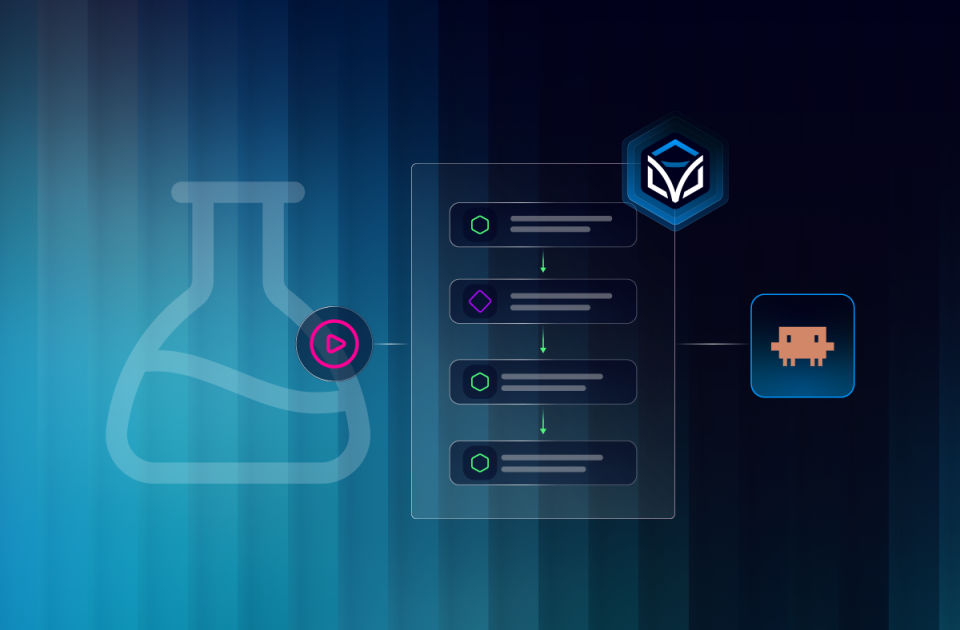
A manual run kicks off a Run Service task inside Design Studio, Itential’s visual workflow builder. This is the same canvas you’d use to build any Platform workflow, start block, task blocks, end block.
Platform hands the request to cluster_1, its registered Gateway cluster. This is the layer that decouples “what should happen” from “which gateway makes it happen.”
Gateway clones the automation content repo fresh and executes the playbook over SSH against ceos1.
show running-config comes back as real job output, pulled live from the device in that moment, not a cached copy from an earlier run.
An Import backup documents task writes a real record into ucm_configs, Itential’s backup store.
It’s one thing to say a pipeline works. It’s another to open Configuration Manager afterward and find an actual record sitting there. This is the backup Configuration Manager saved from that exact run: full running-config, timestamped, tied back to the workflow that created it.
Once the core pipeline worked, I got curious about a different question: could I talk to this lab instead of clicking through it? Itential ships an MCP server, MCP stands for Model Context Protocol, which is a standard way to expose a system’s real functionality as tools an AI model can call directly, instead of the model guessing based on documentation. Itential’s MCP server exposes Platform’s health, Gateway Manager’s registered services, and device state as callable tools. So I pointed Claude Code at it and started asking questions in plain English.
get_health: Redis and Mongo running, all 18 applications reporting healthy, no crashes or restarts.
backup-ceos1 on cluster_1, the exact service this pipeline runs.Not cached docs, an actual show running-config, pulled through the same Gateway Manager and Gateway’s path from earlier, returned the moment I asked for it.
backup-ceos1 on cluster_1, the exact service this pipeline runs.01: The Silent Firewall
Docker Desktop’s macOS VM hit the same cEOS quirk containerlab documents for WSL2, forcing ACCEPT default policies at boot fixed it. ACL/CoPP is my best-guess mechanism here, not an Arista-confirmed cause.
02: Containerlab Without Containerlab
Containerlab’s own docs recommend OrbStack plus a native VM. I skipped that to keep one shared Docker network with the existing dev stack, and ran containerlab inside its own container instead, with --pid host so it could still wire the links.
03: Git, But Make It Smart
Gateway needs smart-HTTP git to clone content; a static file server can’t speak that protocol. Fixed with Debian, nginx, and git-http-backend, though Alpine ships that too, via the separate git-daemon package I missed on the first pass.
Virtualization
ContainerlabDocker DesktopArista cEOS-lab (arm64)
Automation
Ansiblearista.eos collectionParamiko / network_cli
Itential Platform
Platform WorkflowsGateway ManagerItential GatewayConfiguration Manager
Plumbing
Git (smart HTTP)nginx + fcgiwrapMongoDB
Agentic Ops
Itential MCP ServerClaude Code
The lab isn’t done. Next on deck: wiring dynamic field mapping so backups map live instead of hardcoded, parameterizing the workflow to loop over any device by name or IP, adding a compliance and drift check against a stored “golden” config, and repeating the exercise through Gateway for a side-by-side comparison. Part 2 picks up from there, and it’s where the lab stops being two switches and starts becoming a fleet.
Want to follow along with me? Connect with me on LinkedIn.
See how Itential connects AI reasoning to governed execution across your entire infrastructure.